
Getting started
We make getting started on your design simple with our range of easy-to-use design tools.
Get started with Quick Color
Our Quick Color tool helps you visualize what’s possible by displaying our products in your chosen color scheme. Color locations are a sample only - start designing to explore your preferred color locations or style patterns.
To use quick color:
Navigate to the All Products page.
Select the QUICK COLOR on the right side of the screen.
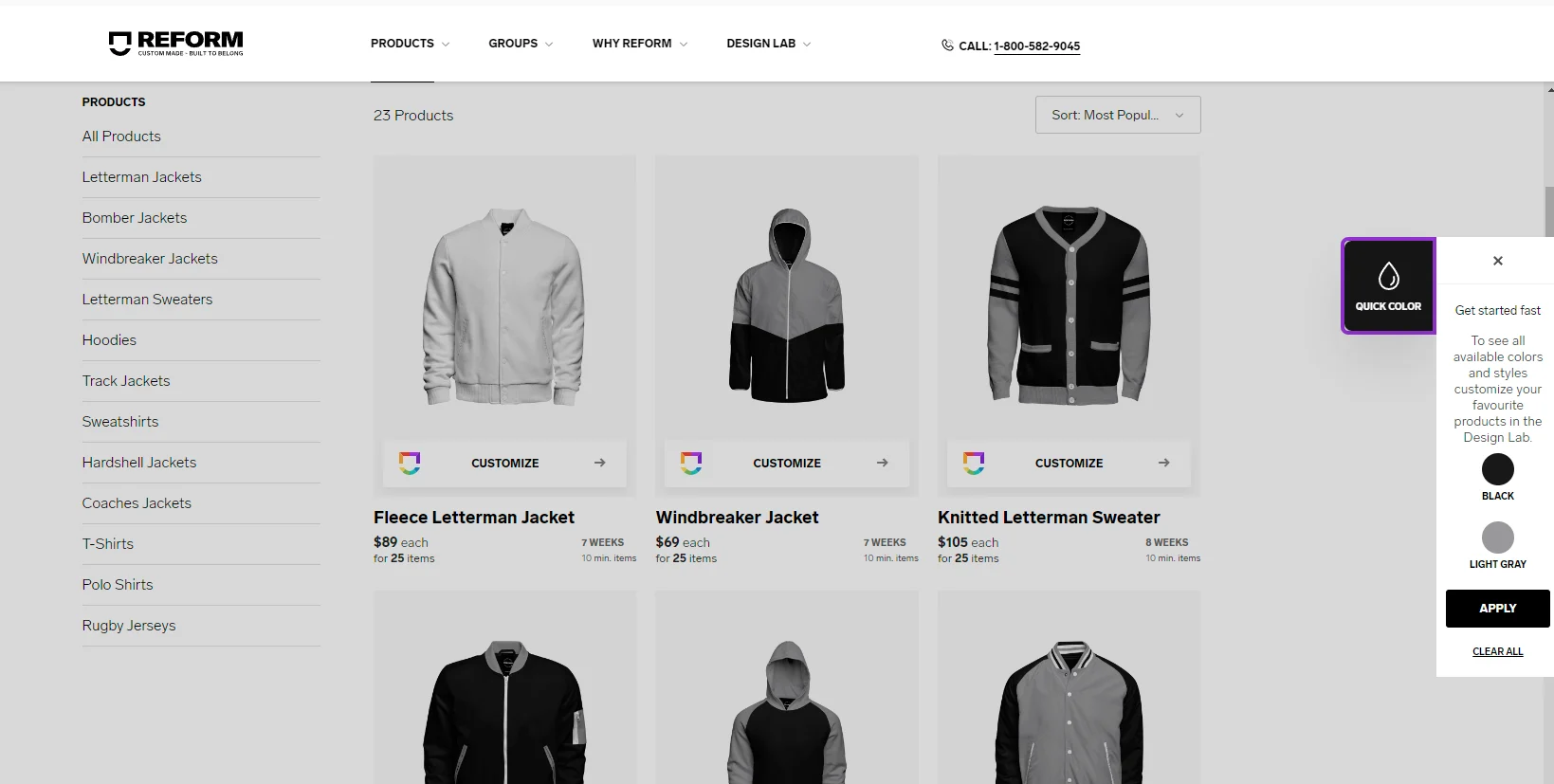
Select COLOR 1 and choose the primary color you would like on your garments.
Select COLOR 2 and choose the secondary color you would like on your garments.
Select APPLY and watch the product images change to your chosen colors.
Note: Some products will show White as the third color to highlight features such as ribbing. This - along with the set colors - can be changed when you start designing.
Unleash your creativity in the Design Lab
The Design Lab is where you can create the perfect design to represent your group.
To get started in the Design Lab:
Find the product you wish to design on from our extensive range on the All Products page.
Select CUSTOMISE on your chosen product.
Select EDIT DESIGN to view the product in the Design Lab.
If you have selected quick colors, the product will have your colors already loaded. Otherwise, use the COLOR menu to set or change the colors.
Use the DESIGNS menu to add artwork, your logo, text, and custom names or numbers to your design. For further information on all the tools in the Design Lab, see Navigating the Design Lab.