Designing my product
Upload logo/graphics
Add a logo/graphic to your design
While editing a design in the Design Lab:
Click on the DESIGNS menu.
Choose the location to upload to, e.g. Chest Right.
Click UPLOAD.
"Drag and drop" or "Browse" for your file.
Please wait a moment while your file uploads, and following a successful upload your file will appear in the RECENT FILES section.
CLICK on your selected thumbnail graphic to add it to the selected decoration space.
By uploading to https://www.reformclothing.com you confirm that your graphic files do not infringe any laws or third-party rights like copyright, trademark, or personality rights. For more information on your obligations for uploading licensed/copyright artwork, please see Authority to use and reproduce logos/graphics below.
Logo/graphic guidelines
The following are provided as a guide for preparing your logo/graphic for upload.
Our design team reviews every order that is submitted and if we discover any issues, we'll work with you to resolve them before moving your order to production.
If you have any questions, feel free to reach out to our team via the contact us form. If you have a saved design, send us the link as well so we can take a look and provide assistance.
Colors
Logo/graphic contains a maximum of 8 solid colors (no gradients or blends). The Design Lab may reduce similar colors automatically to help meet this requirement. Colors will be changed to match our closest available colors during the upload/add process. To understand this process more, see FAQ: “Why are my colours changing?”
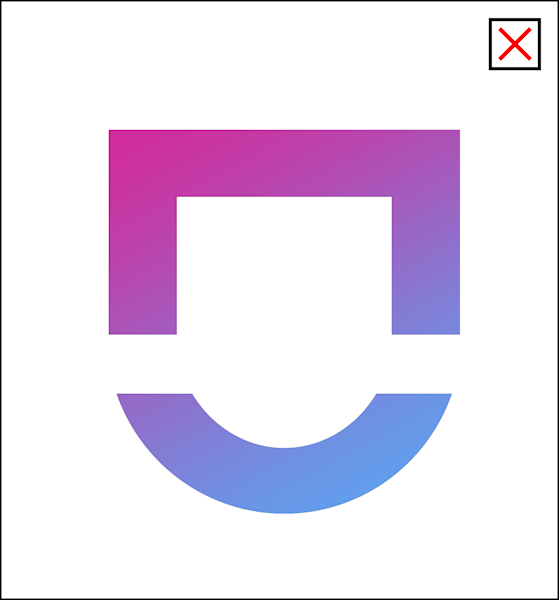
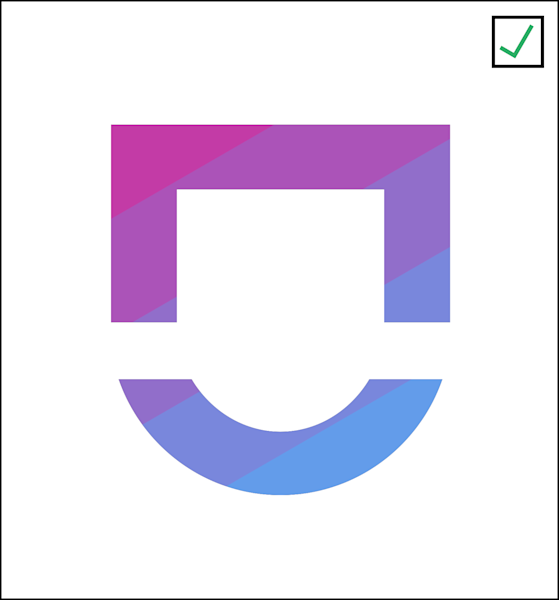
A gradient is used which cannot be supported in embroidery. Graphic is reworked to 5 solid colors to achieve a gradient effect in embroidery.
Note: These guidelines are suggested for all application types. However, on special requests, Reform can accommodate more complex images provided you are applying these to sublimated fabrics. To discuss or for more information, contact us.
Simple shapes & details
Avoid overly complex designs or designs with fine details.
Your logo/graphic must use flat/solid colours for all shapes and text.
We are unable to support photography, fine lines or small thin text.
All details, including borders or linework, must be at least 0.08” (2mm).
If your detail and linework are below the minimum, you will be contacted to revise your logo/graphic before your order can proceed to production.
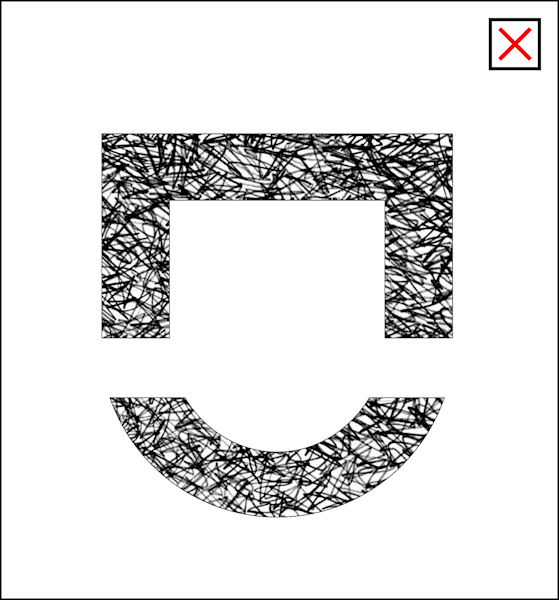
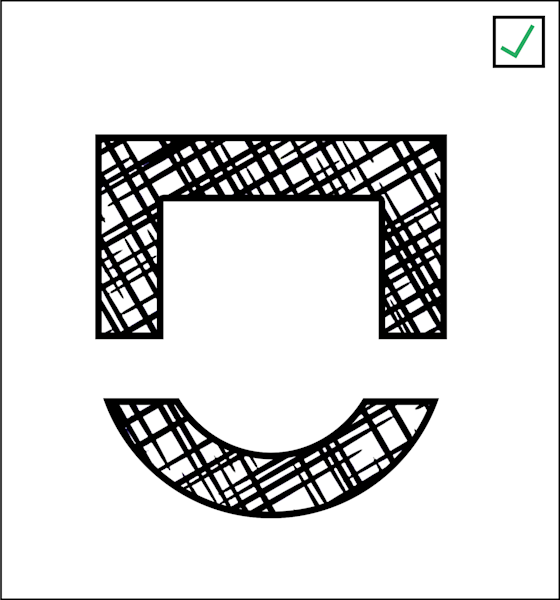
Pattern includes lots of thin lines using shades of black and thin borders which cannot be achieved in embroidery. Graphic is reworked to capture the essenece of the pattern with all linework at least 2mm thick at the intended scale using only solid black and white.
Note: These guidelines are suggested for all application types. However, on special requests Reform can accommodate more complex images provided you are applying these to sublimated fabrics. To discuss or for more information, contact us.
Image format & quality
Your logo/graphic should be high resolution, with a suggested 300 DPI (dots per inch) at the intended decoration size, a maximum of 3000px in width/height, and saved in PNG or PDF format. No pixelation should be visible. Resolution errors will display in the Design Lab where your graphic does not meet resolution requirements. You can resolve this by uploading a higher resolution image or scaling your image down.
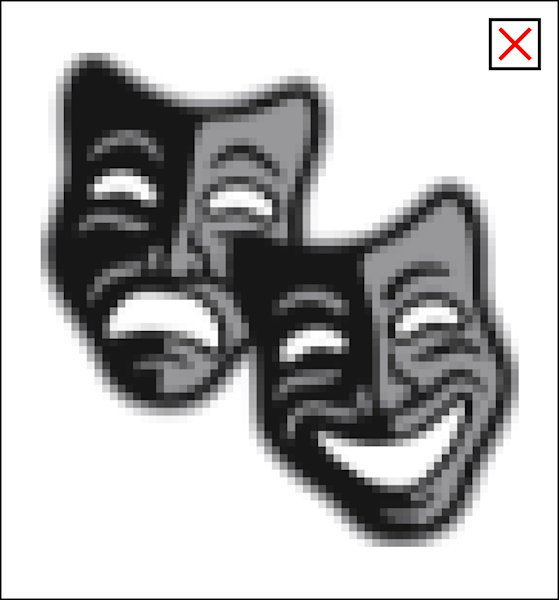
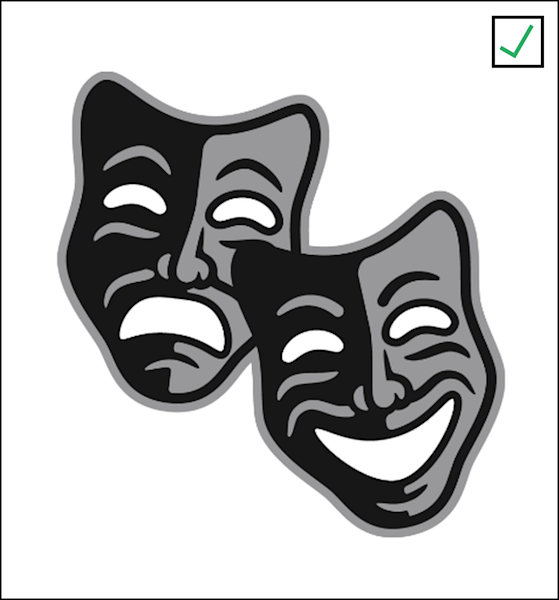
Image is not 300 DPI at the scale intended and so has become pixelated. This graphic cannot be produced. Where no other graphic is available at a higher resolution external design services may be required to vectorize your graphic. Image is imported at a higher resolution (ideally 300DPI) or scaled down to meet resolution requirements where no errors display and the graphic is crisp and clear with no pixelation.
Transparency
For best results, we suggest saving your logo/graphic in PNG or PDF format with a transparent background.
If you only have a JPG file available, ensure backgrounds are removed during the upload process using the "Remove background" feature. Please be aware that if your logo/graphic has any elements within it that are the same colour as the background, they would also be removed and not embroidered/printed. If you are having trouble with background removal or unable to obtain a PNG/PDF format, please contact us.
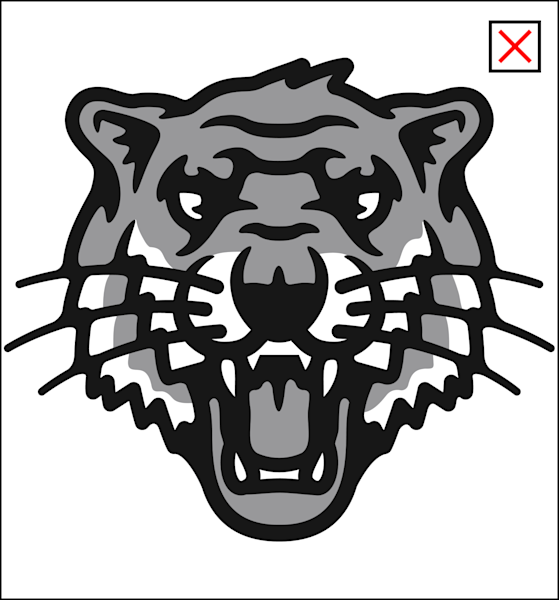
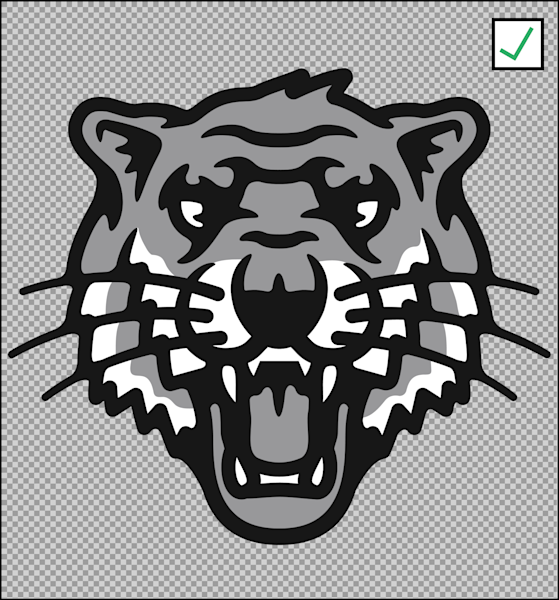
Image saved as a JPG and background is not removed. In this case all white will be printed/embroidered. Image is saved as PNG/PDF with a transparent background which preserves only the intended white areas to be embroidered.
Fonts/Text sizes
Embroidery/Badges
Minimum of 0.2” (5mm) for lowercase or uppercase letters.
Sublimation/Heat transfer
Minimum of 0.08” (2mm) for lowercase or uppercase letters.
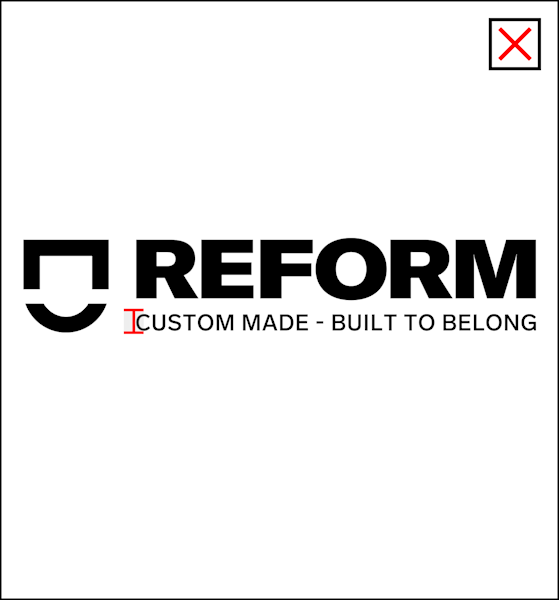
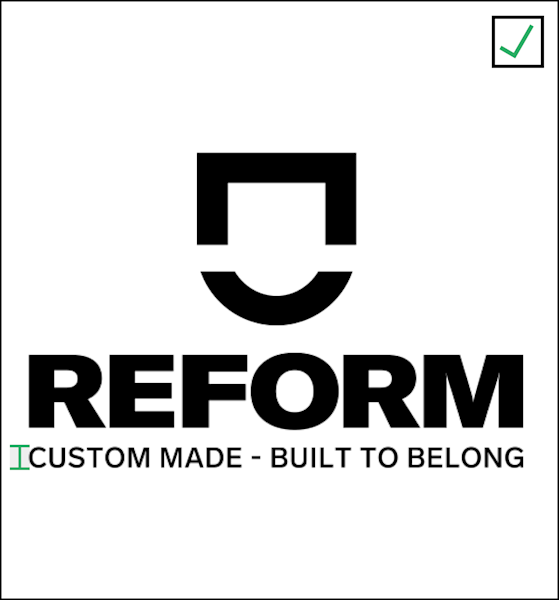
The tagline in the logo does not meet size requirements being just a little short of the minimum size. Secondary logo is used instead where the tagline is able to be scaled to meet minimum size requirements.
Tip: To check font height in the Design Lab, add a graphic such as a “Square” from the Artwork gallery and size it to the minimum size specified in embroidery or sublimation requirements above to ensure your text is sufficiently sized. See the example in this video below.
Outlines
Outlines on graphics and text have additional requirements. For example, small text does not support outlines. The text must be at least 0.4" (1cm) for all characters before an outline may be applied.
We suggest utilizing outline functionality within our Design Lab on graphics and text to ensure sizing meets the above “Simple shapes & details” requirements.
If outline details are too small, you will be notified following order submission and we will work with you to revise your logo/graphic. To discuss or for more information, contact us.
Size and cropping
Logos/graphics should be cropped to edges of the image so that dimensions and placement can be easily set and visualized in the Design Lab.
For crests and logos we recommend a maximum height of 9cm, not including supplementary text.
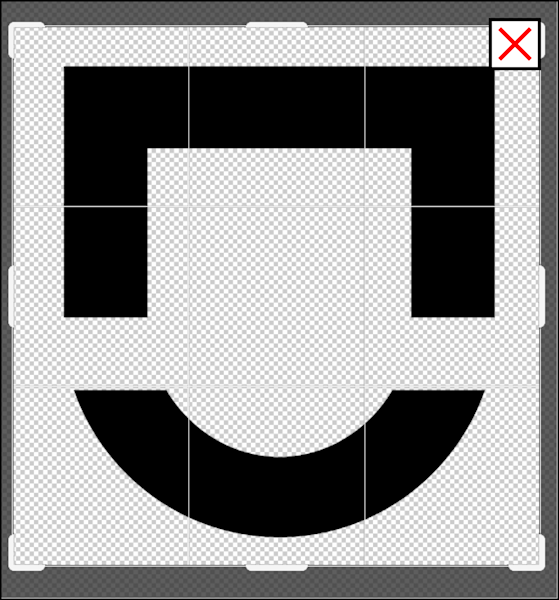
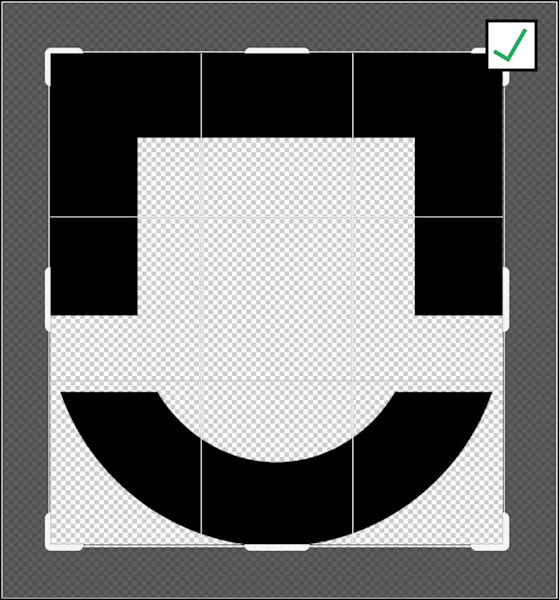
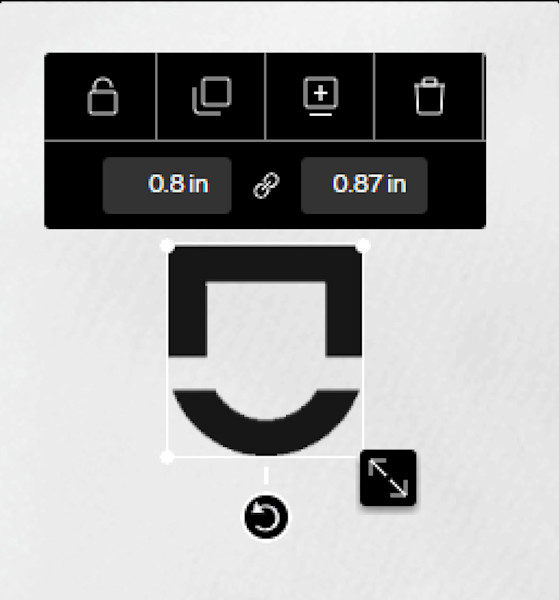
Graphic has not been cropped to edges. Graphic has been cropped to edges. With graphic cropped to edges the measurement sizes in the Design Lab is accurate.
Restrictions
Objectionable content
As per Reform Clothing's Terms and Conditions in using the Design Lab file upload function, you must not upload images or submit text of content that most users would find to be offensive, upsetting, or inappropriate.
Some examples of objectionable content include: defamatory commentary and hate speech about religion, gender, race and other targeted groups, overly-sexual material of an explicit nature, portrayals of extreme violence, or content that encourages violence, bullying and harassment, and Illegal activities such as drug use.
Discovery or reports of uploaded files of this nature will result in the deletion of your designs and a permanent ban of your account.
Authority to use and reproduce logos/graphics
As per Reform Clothing's Terms and Conditions in using the Design Lab file upload function, you must not include any text, images, designs, trademarks, service marks, or any copyrighted works of any third-party in your products unless you have obtained the appropriate authorizations from the owners. Where third-party logos/graphics are used that do not belong to you or your place of work, Reform may require proof of authorization from the third-party owner. Reform may make a request to verify approval has been granted and failure to validate will result in the cancellation of your order. Reform will not accept orders where variations are made to designs, trademarks, or copyrighted work to attempt to overcome infringement. Attempting to design or place orders violating copyright law may result in the cancellation and deletion of your account and designs. If you want to get authority to use a logo/graphic, see FAQ: “How do I get authority to use a logo/graphic?".
Popular questions
If you or your business does not own a logo/graphic then you do not have permission to use it and Reform will not be able to accept your order.
In order to use the logo/graphic you must have permission. If you are unable to obtain permission from the owner, you must refrain from using their logo/graphic. Note: Reform may request a copy of the signed release form.
Seek permission
- We suggest you seek independent legal advice as required in contacting the owner of the registered trademark.
- Sample Logo/Graphic request permission letter (DOCX | PDF)
Usage
With permission, you should also consider the following:
- Only using the logo/graphic as described and agreed with copyright owner
- What restrictions are in place. For example, if you want to change the logo in any way, or need to make changes to meet production requirements, ensure you have the right to do so.
- Ensure the depiction or placement of the logo does not mislead consumers that you are affiliated with a company in a way that you may not be.
Unfortunately at this stage we do not support photos or gradients in the Design Lab as gradients contain hundreds, if not thousands of colors, which cannot be supported in embroidery applications.
However, if you are interested in this for Sublimated Badges or sublimated fabrics our team may still be able to help achieve your logo/graphic goals.
Simply send an enquiry and let us know what you are after and one of our team members will be in touch.
You can certainly try!
For the most part we have checks and processes in place to try to import your logo/graphic where we can support it. However, there is an exception for detailed or complex logos/graphics and small text. Even though these will upload, it’s possible it will not be able to be produced if you haven’t followed the guidelines as there are limitations on details and size requirements that must be followed for text.
Generally we suggest trying with a high resolution logo/graphic, and if you are seeing anything unusual after the import then we suggest following the guidelines to resolve.
Occasionally technical issues do arise due to networking issues with the services processing your upload. However, most commonly this occurs due to an issue with file format or file size.
We suggest checking our FAQ: “What are the file upload limits?” and “What file formats can I use?”, or trying again later.
If the problem persists to get in touch with our team.
If you see a yellow or red warning on your logo/graphic, you may have an issue with resolution.
In certain situations we may accept a low resolution upload into production if the resolution is still of a quality we can embroider. However, low resolution is not acceptable for sublimated fabrics.
Ensuring high quality sublimation or embroidery requires at least the minimum uploaded file resolution.
To resolve low resolution issues we suggest:
- Upload a better quality version of the logo/graphic at 300DPI (usually a larger file size ~ 1-5MB).
- If available, discuss this with your marketing, branding, or design department to receive an appropriately-sized logo/graphic.
- Note that your image may need to be resized down to meet upload requirements.
- Reduce the size of the logo/graphic until the low resolution error disappears.
- Consider the location of your logo/graphic:
- A large back decoration area requires much higher quality logo/graphics whereas a small chest position can handle a lower resolution logo/graphic.
If you’ve tried these suggestions and are still unsure, you can get in touch with our team.
Please note that we don’t restrict saving or ordering from low resolution uploads but if image resolution issues are not resolved this may result in delivery delays or even suspended orders until the issue has been resolved.
__Supported file formats: __
- .png - PNG Image (Recommended)
- .jpg - JPEG Image
- We suggest “Remove background during upload” is enabled to remove white background. Note: If your logo/graphic contains white elements then you must use PNG format instead with a transparent background
- .ai - Adobe Illustrator Document
- Note: AI files must not contain any semi-transparent layers,
- .psd - Adobe Photoshop Image
- .pdf - PDF Image
- .ps, .eps - PostScript File
Unsupported file formats:
- Microsoft Office files including: .ppt, .doc, .xls
If your logo/graphic is in one of these file formats then please save the image separately from the document. This can often be performed by right-clicking the image and selecting “Save as Picture” or similar. Upload that file instead.
When a file is too large it may not be able to be processed and stored.
File size limit
- The file must be no more than 10MB.
File resolution limit
- Ensure your image is less than 3000 px on both width and height.
- This ensures your file will not be higher than 10MP resolution limit.
- To prevent resolution errors we suggest your file is 300DPI. However, lower resolution images may be okay if your logo/graphic is scaled to ensure no resolution errors display.
For considerations on placement of your logo/graphic, please see our Guide to artwork/element placement in decoration areas.
Some logos/graphics such as crests with intricate details or logos with taglines are unrealistic to embroider at small sizes.
The size of the element and level of detail need to be considered and balanced accordingly in line with the guidance on “Simple shapes and details” above.
It’s quite normal for a logo to require some rework or adjustments to be able to be embroidered at a small size. In particular, some details or text may need to be simplified or reduced.
If you are not open to making changes to meet these requirements for embroidery, we would suggest selecting a product with sublimated fabric where the level of detail that can be achieved is higher.
When your uploaded graphic or logo is added to a decoration space, it will be converted to a maximum of 8 colors and matched to our closest matching color from the 200+ colors available.
Tip: To see similar colors, select the color on your logo/graphic and then + More Colors.
Our colour reduction tool attempts to select a maximum of 8 colors from your original image.
However, in some cases colors may be reduced too much when two colors are similar, resulting in unexpected behavior.
To resolve this, we suggest editing your original image file in image editing software and changing the affected colurs to opposing/alternative colors (e.g. Blue → Red) and then re-uploading and selecting appropriate colors in the Design Lab following the upload.
The way your file is saved and stores color information may impact the closest color matching in the Design Lab.
Please be aware that selecting colors based on screen display means that your garment colors may vary.
These differences are predominantly due to differences in monitor settings for calibration, brightness and contrast. However, there are also differences between simply representing a color on screen to a physical material or fabric.
If you are using onscreen color selection, please ensure you logos/graphics are saved and uploaded using RGB color mode and RGB Profile sRGB IEC61966-2.1. Additionally, we recommend setting your monitor to sRGB IEC61966-2.1 as well so that you can compare the resulting matched colors following upload onto your design.
If physical color matching is important to you, we have a number of color matching options available.
Usually this occurs where a JPEG image has been used and the background removal has not been utilized or there has been trouble removing the background due to image complexity.
If your image has no other white elements within the design, then we suggest attempting to re-upload and ensure that “Remove background during upload” is selected.
Alternatively, if there is white within your logo/graphic that needs to persist, then we suggest obtaining and uploading an PNG, PDF or EPS source file that has a transparent background.
We don’t restrict saving or ordering from low resolution or high-complexity uploads. However, if issues are not resolved before the order is submitted then this may result in delivery delays or even suspended orders until the issue has been resolved.
When your order is submitted, our team will review your designs and ensure they meet production requirements. We will be in touch within four business days if there are any issues to resolve.
If there are issues, you can expect to work with our team to resolve the issue.
This may include:
- Asking you to source for a higher-quality version of the logo/graphic.
- Asking you to make changes to the logo/graphic to meet production requirements, including:
- Increasing text size.
- Removing or thickening linework/borders.
- Increasing or reducing the scale of the logo/graphic.
- Working with our design or production department to make minor changes directly.
- Requesting you to complete your order outside of our Design Lab and ordering platform.
Uploads are always slower than downloads simply because of the way the Internet and networks are designed.
In addition to this, before your logo/graphic can be used, it has to go through a number of processes to prepare it for use in the Design Lab such as the colour reduction process - see FAQ: Why are my colours changing? Image processing is a slow process and can be made slower with large files. As such, please be patient while your upload takes place.