
Importing your order
If you have already collected your group’s order details, you can use our import feature to quickly add them to your order.
Follow the steps below to import your order details:
Download and collect (or transfer) order details into our template.
To ensure your data imports correctly, you must use this template - you cannot use your own Excel or CSV document.
Do not make any changes to the column titles on the template.
Ensure you complete the Reference field to specify for whom that order/size is for. This will make it easier to make changes to orders and view order history.
Create a new Buy Now order or open your existing order through your order history.
Please note the import feature is only available on 'Buy now' orders, as 'Buy with a group' orders are intended for your group to submit their own order details.
On your order management screen, locate the product you wish to import the order details for and click SHOW ORDERS.
If you have multiple products, you will need to import a separate file for each product.
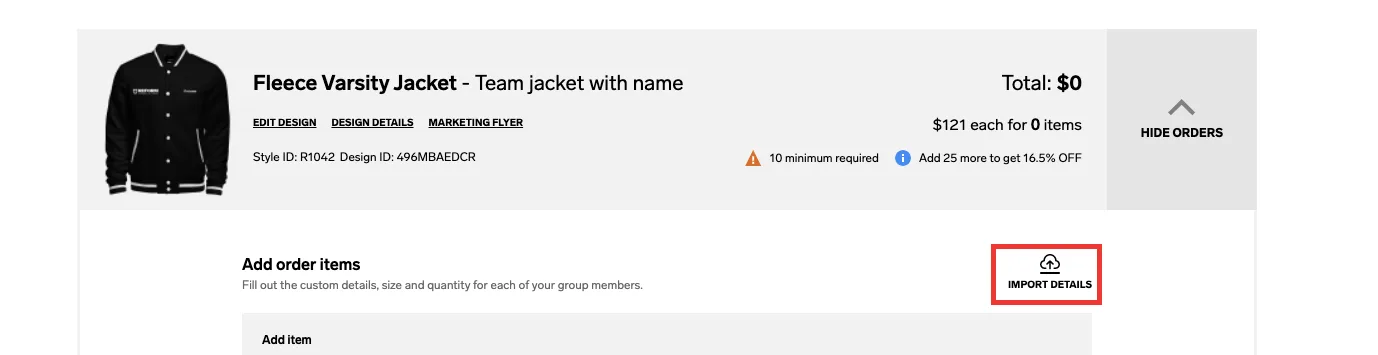
Select IMPORT DETAILS.
Drag and drop your file into the box or browse files to select.
If you haven’t already added any orders or want to overwrite existing orders, select Replace all order items. If you have already added orders and want to keep them, select Add to existing order items.
Select IMPORT.
Check the data displayed in each field matches the field name. If it does not, select the right column from the dropdown. Once the data matches, click CONFIRM.
Pay particular attention to any custom name fields to ensure the correct custom name is printed in the correct position on your garment.
Your order data will now populate in the Added order items section.