
Reorders
You can order more of your designs through our simple reorder process.
The minimum order quantity for reorders is 10 and no changes can be made to your original design. To be able to reorder a design, you need to be the owner of or a contributor to the original order.
At times Reform may need to discontinue a product, fabric, colour, or badge type. If your design contains a discontinued item, you will not be able to reorder it.
How to reorder a single product
Log in to your account and head to the top Orders top menu.
In the Completed Orders section, locate the order where the design you wish to reorder belongs to and select ORDER SUMMARY.
Locate the design you wish to reorder and select the REORDER button next to it. You will then be prompted to start a new order for this design, or you can add the design to an existing order.
If you need help starting your reorder or to discuss a discontinued product, please contact us.
How to reorder multiple products from previous orders
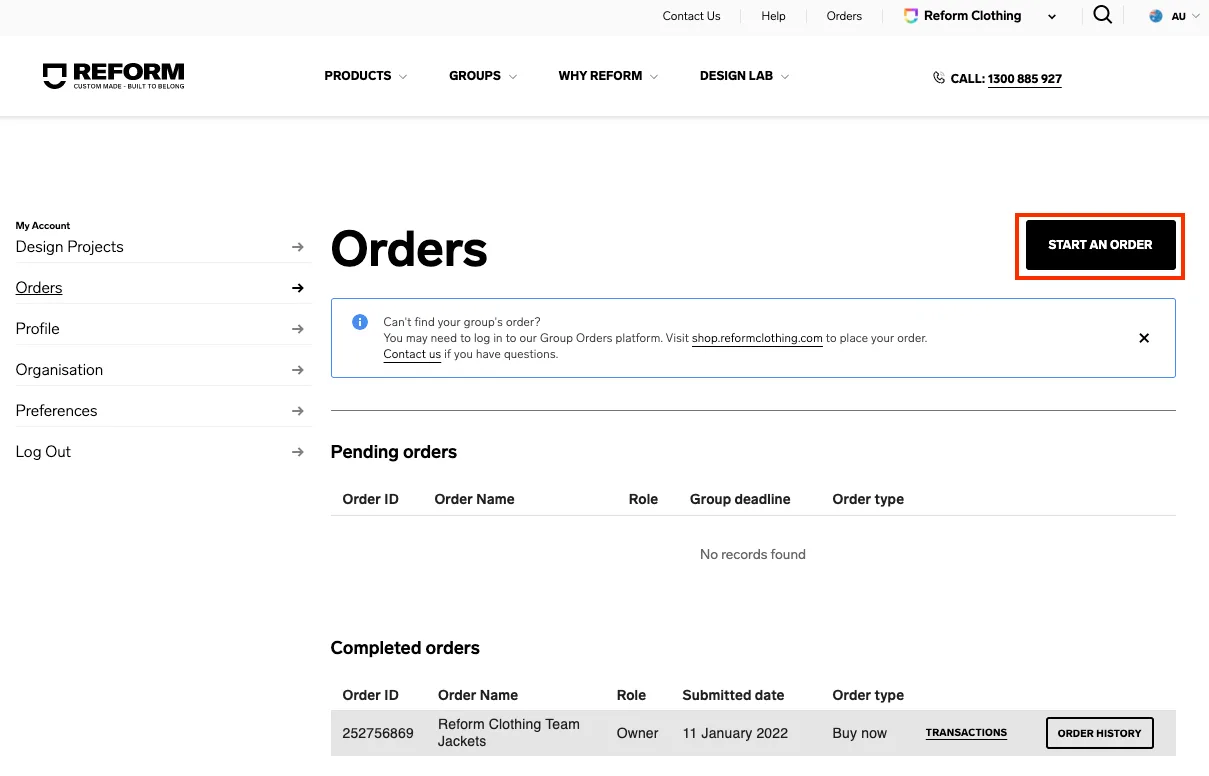
Log in to your account and head to the top Orders menu.
Select START AN ORDER.
Select the order type.
Set your order name and select your payment type (if you are starting a group order).
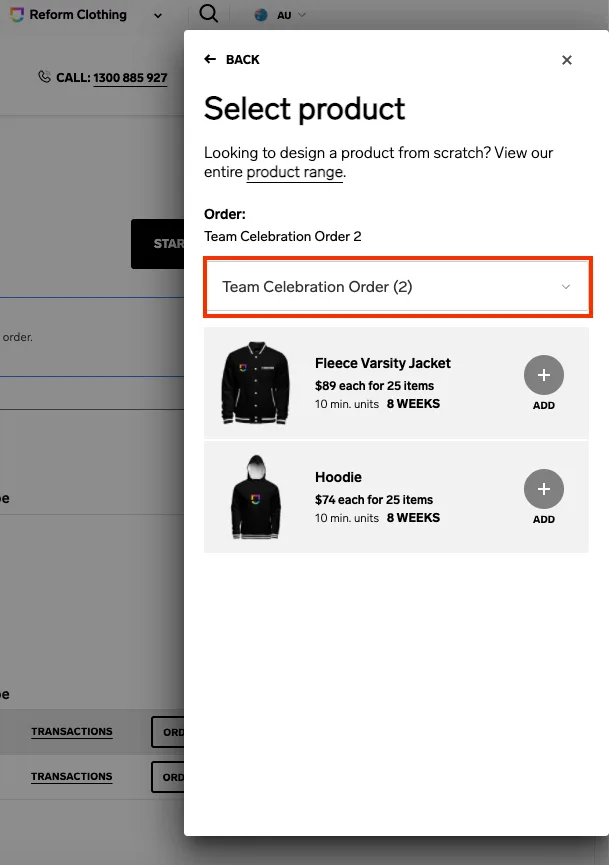
On the Select product panel, select the dropdown menu.
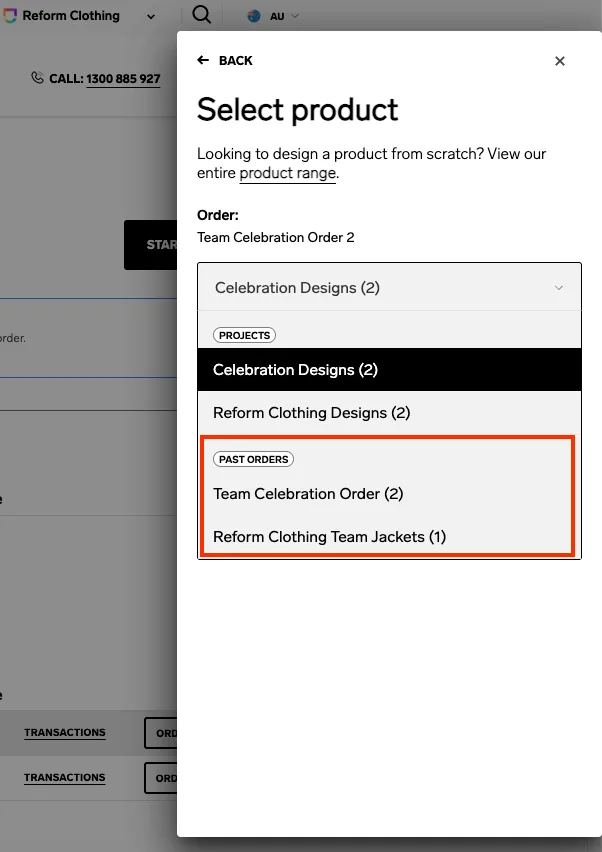
Scroll down to Past orders and select the order that contains the designs you want to reorder. Note: Ensure you choose from the Past orders section - do not select your design from the Design Projects section.
Complete the design check. Your first product is now added to the order.
To add your next product, select ADD ANOTHER PRODUCT.
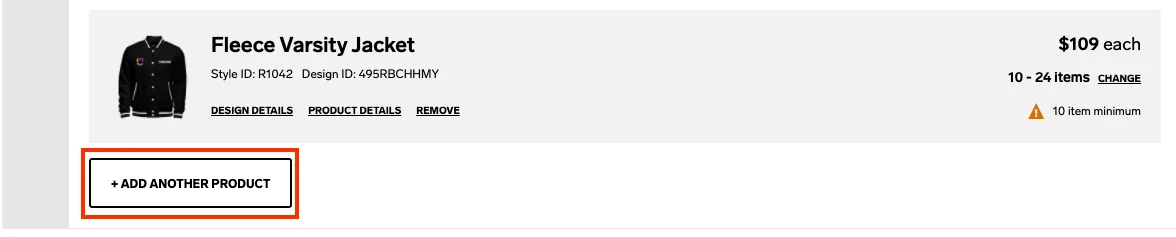
Follow steps 5-7 above to add your next product, ensuring you are selecting the design from the Past orders section. Repeat for all products you want to add to your order.
