
Design Voting
With so many design options to choose from it can be difficult to finalise your design. We have created a design voting tool to help you get there faster.
There are no limits to how many design votes you create. You may find you want to create different types of votes throughout the process in order to finalise your designs.
Determine your voting method
To get started, first determine which voting method you would like to use, standard or decoration.
Top design ranking
This voting option will allow your group to rank their top designs in 1st, 2nd and 3rd place (if applicable). This preferential voting system makes it easier for your group to feel like their voices are heard, even if their 1st preference doesn't win the vote their other rankings may still contribute to the winning or top designs. This vote method is best for:
Narrowing down your designs to a top set for another round or to select your final design option.
Deciding between different styles or patterns. For example: Would the group prefer a Button, Zip or Stormfront option on a Varsity Jacket, or perhaps which stripe pattern is the favorite on a Rugby Jersey
Note: If you are more concerned about specific decoration decisions and not on the style or fabric colours etc. of the garment then we suggest trying a decoration vote.
Example Top design ranking vote
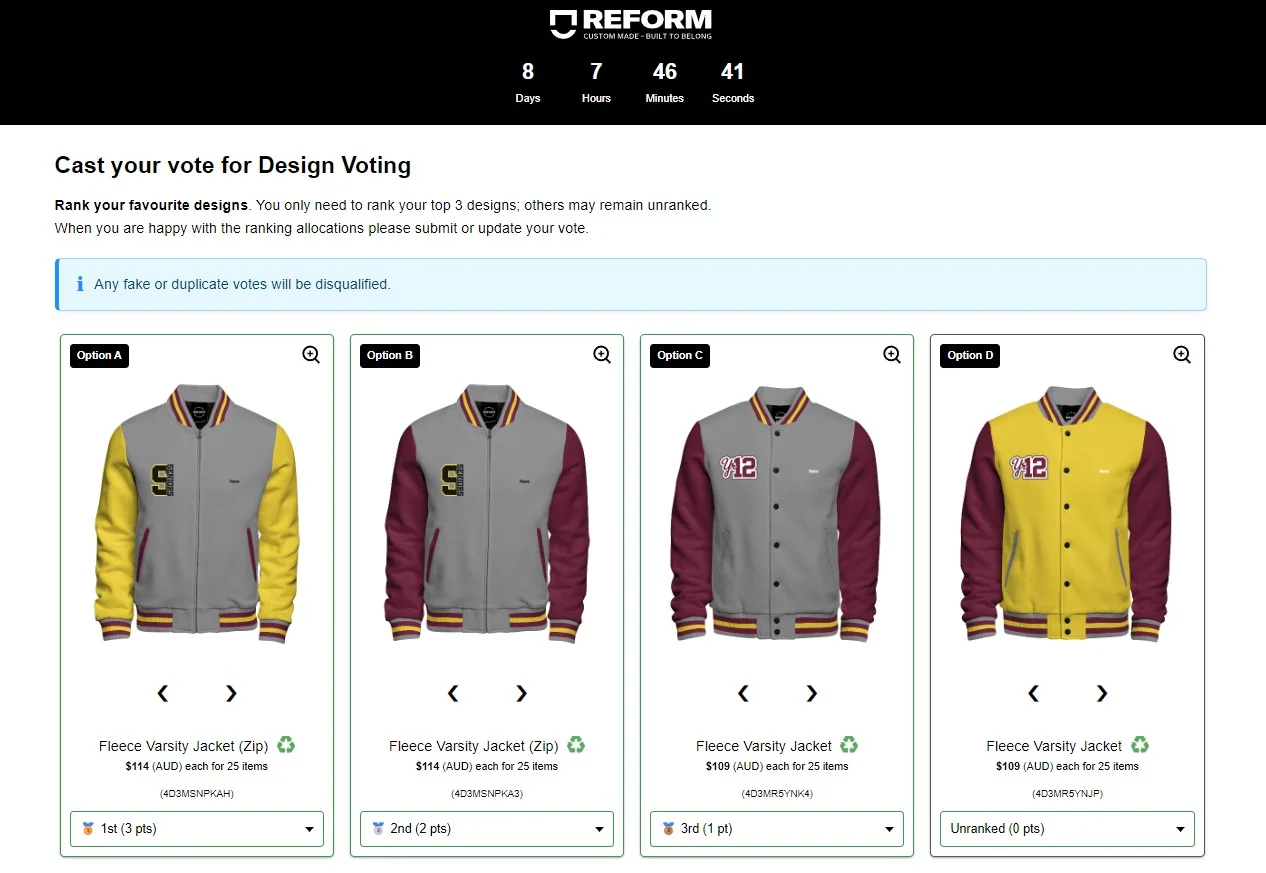
In the top design ranking vote your group members may rank up to their top 3 complete designs.
Decoration
Decoration votes will allow your group to vote for their favorite decoration(s) that make up the designs you have created.
Decoration votes are best for when:
You have a number of different decorations you want to choose between. For example you may have 3 Varsity Jacket designs and you want to choose between:
Which graduation number design for the back decoration space
Where to place your custom name.
When your group casts their vote they will be asked to decide between decorations in the same decoration space across your selected designs. For example, they will compare and pick their favorite inside lining, or back decoration from the designs you have added to the vote.
To get the most out of your decorations vote we recommend creating 2-3 designs where the product style is the same, with each design showcasing a different option in each decoration space. At the end of the vote we suggest creating 2-3 design options using the preferred decorations and then proceeding with a Top design ranking vote to finalise your design.
Example decoration vote
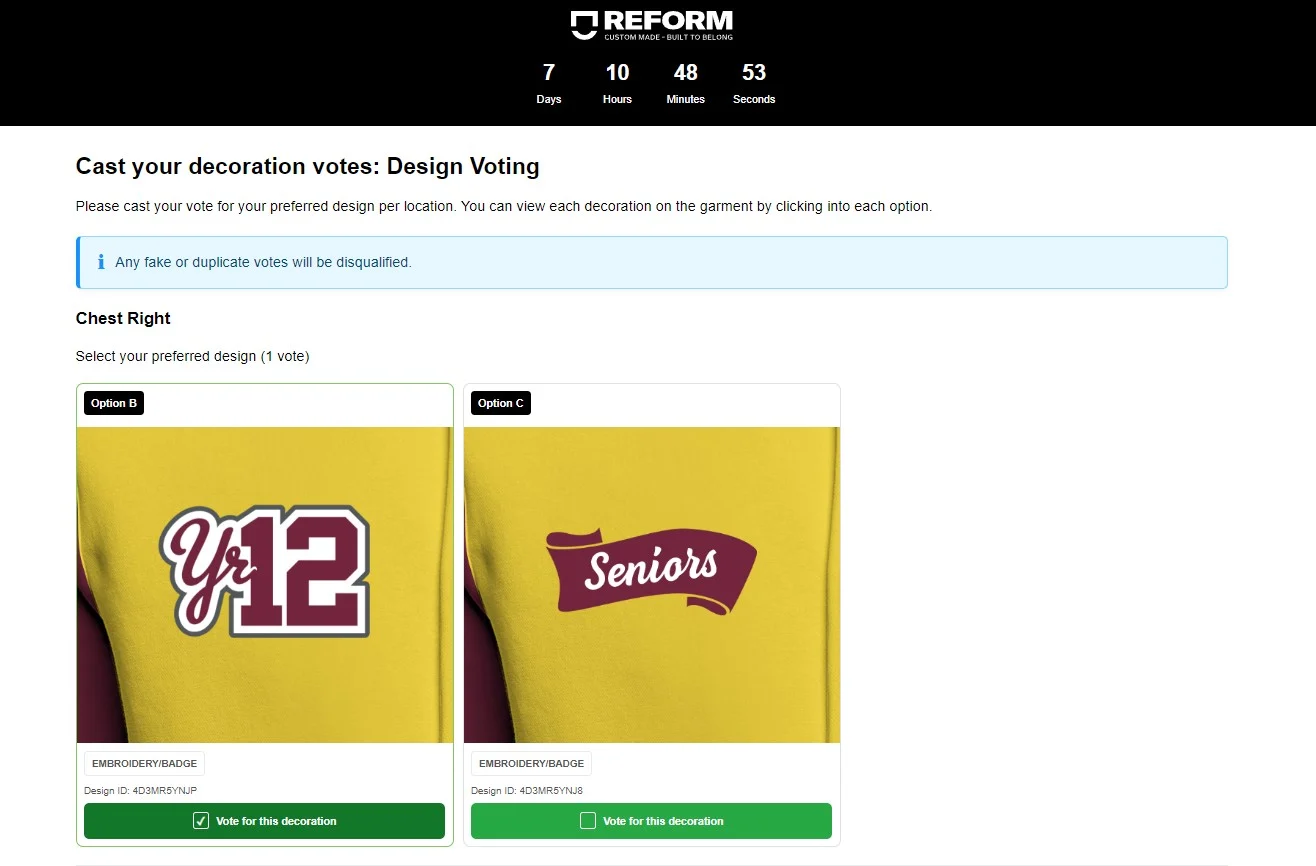
Create your vote
Log in and head to your Design Projects.
Ensure the designs you want to include in your vote are finalised and saved in the same design project.
You can move the designs you want to vote on to one project by selecting the three dots on a design, then select Copy to project and select the project you wish to copy it to.
Select the project containing the designs you would like to add to your vote.
Select START A VOTE.
Follow the on-screen instructions to select your voting method and enter additional setup information.
Allowing feedback and comments gives your group the opportunity to provide valuable feedback which often leads to finalizing your design quicker.
Select the designs you wish to add to the vote.
Select Create vote to finish the setup. You will receive an email confirming your vote is set up, which includes links to share and manage your vote, as well as check the results.
Manage your vote
Once your vote is set up you will be taken to the voting management screen where you can:
Copy the vote link to share the vote with your group.
View votes counts and feedback (if enabled).
Monitor disqualified votes and check for duplicate votes.
Review vote analysis to show if votes are still coming in and if they are likely to change the current result.
Close your vote or update your vote close date.
Remove designs or decorations from the vote.
If any errors have been made you may replace or add designs to the vote.
Head back to to the Design Lab to edit existing designs to create new versions. Note: Any new versions will not update your design vote. To do this you would need to save a new design and then use the "Replace design" feature on the Design tile within the vote management.
Cast your vote
For group members your vote manager will provide you with a link to the voting page.
Follow the link and fill in any required information. This may include your name and/or student number.
Vote type:
Top design ranking:
Rank your favorite designs. You only need to rank your top 3 designs; others may remain unranked.
You can see a detailed view of designs by selecting the magnifying glass.
Provide feedback on individual designs (If this option has been enabled for this vote)
Decoration vote:
You may vote on your favorite decoration in each location on the garment.
You can see full view of where the decoration is placed on the garment by selecting the magnifying glass.
Leave feedback in the box (if this has been enabled by your vote manager).
Select Submit vote.
You can change your vote up until the vote is closed by selecting Modify your vote or select Results Page to view the vote results in real-time.