Save and share
We offer different ways to help you save your designs as well as collaborate and share designs with your group.
If you want to allow maximum input and collaboration with your group, we recommend registering for a user account and utilizing Design Projects rather than simply saving to your email address.
Design projects allow your group members to:
View and compare each other's designs.
Add their own designs for consideration.
Favourite designs they like best.
Hide or archive designs.
Refine existing designs.
Using Design Projects
Create a project
Head to the Design Projects space. You may need to log in or create an account if you haven’t already done so.
Select CREATE A NEW PROJECT.
Give your project a name and select CREATE A PROJECT.
Save designs to a project
Create the design in the Design Lab.
Select SAVE DESIGN.
ADD to the project.
Continue iterating and saving additional versions or VIEW PROJECT.
Note: Designs you saved to your email before creating a project will be saved in the Additional designs project. To move them into your new project:
Select the '...' icon on the design you want to move.
Select Copy to project and select ADD.
Start collaborating with a design project
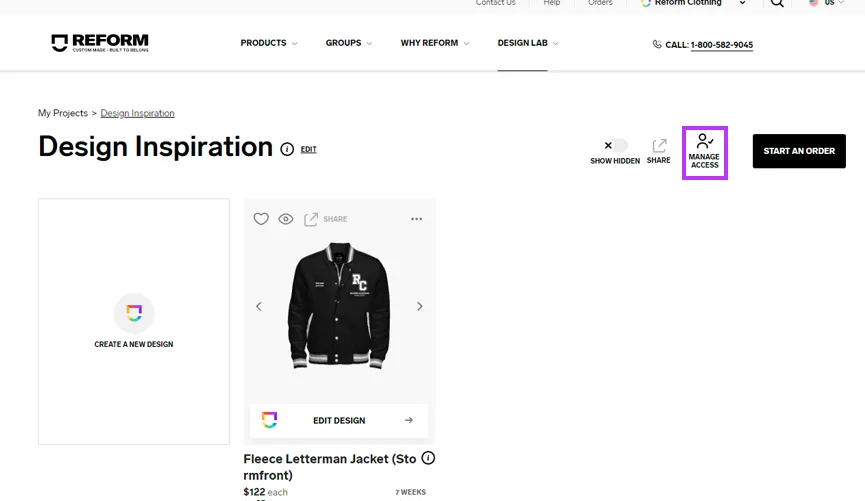
Within your project select MANAGE ACCESS.
Enter the email address - one at a time - of the individuals you would like to invite to collaborate and hit INVITE.
Your group members will receive an email with a link to the project.
Following acceptance, your group members will have access to add, favourite, hide, rename, or iterate on existing designs, and save new designs to the project.
Repeat for additional collaborators.
Rename your designs
We recommend renaming your designs to make it easier for your group to distinguish between designs (particularly if you are comparing designs via a vote).
Select the project containing your design.
Select the '...' icon on the top right side of the design.
Select Edit name and description.
Enter in the name and description and select SAVE DESIGN DETAILS.
Sharing designs
You can use the 'share' option to share a design or project and allow others to view the project or design once it has been saved in the Design Lab.
Using the share link does not allow others to add designs to your project, directly edit your design, or hide or favourite a design. However, it will allow others to make changes to your designs and save them as their own versions without changing your originals.
To share a design saved to your email
You just need to share the saved design link which you can do a number of ways:
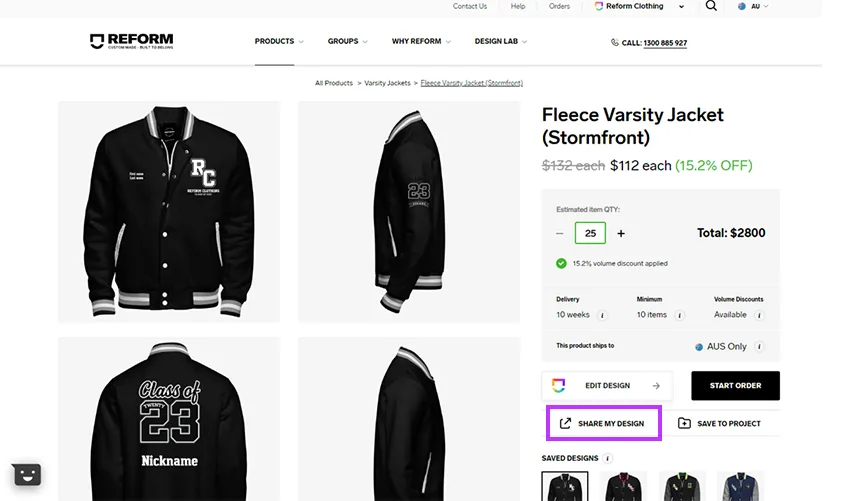
Copy the link from the View product details or Share Design button from your email.
Follow the View product details or Share Design button from your email and select the SHARE MY DESIGN button and COPY LINK or share socially.
Alternatively, simply forward the email.
To share a design project and all of its designs
Head to the Design Projects space.
Select VIEW PROJECT on the project that contains the design you want to share.
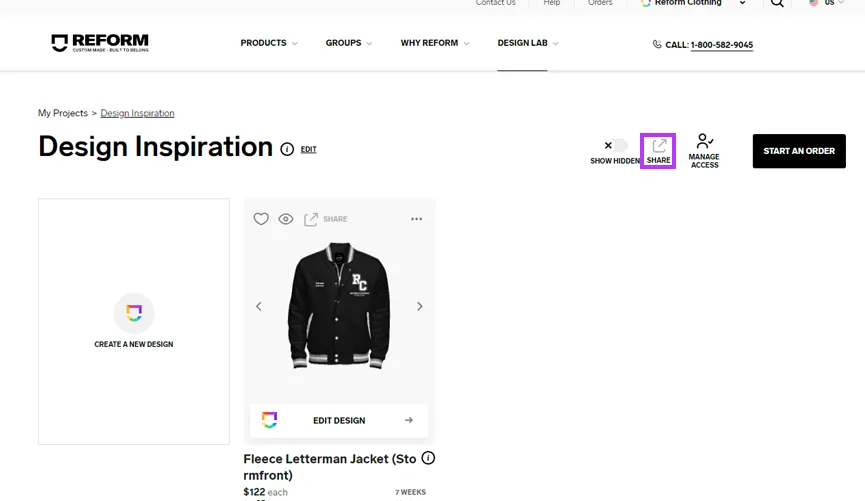
Select the SHARE button.
Select COPY LINK.
Send and share the link with those you want to be able to see your designs.
Note: Designs that have been archived/hidden will not be displayed to users that view your shared project.
To share a single design saved to a project
Head to the design projects space.
Select VIEW PROJECT on the project that contains the design you want to share.
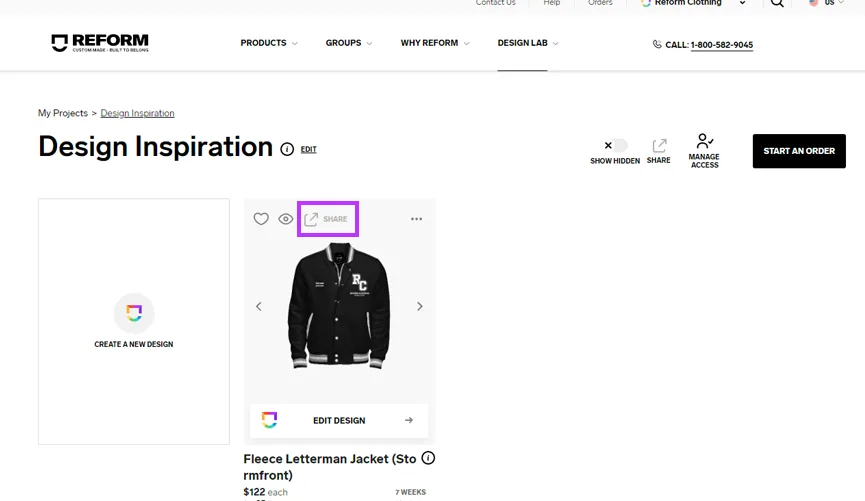
Select the SHARE button on the specific design your wish to share.
Select COPY LINK.
Send and share the link with those you want to be able to see this specific design.